
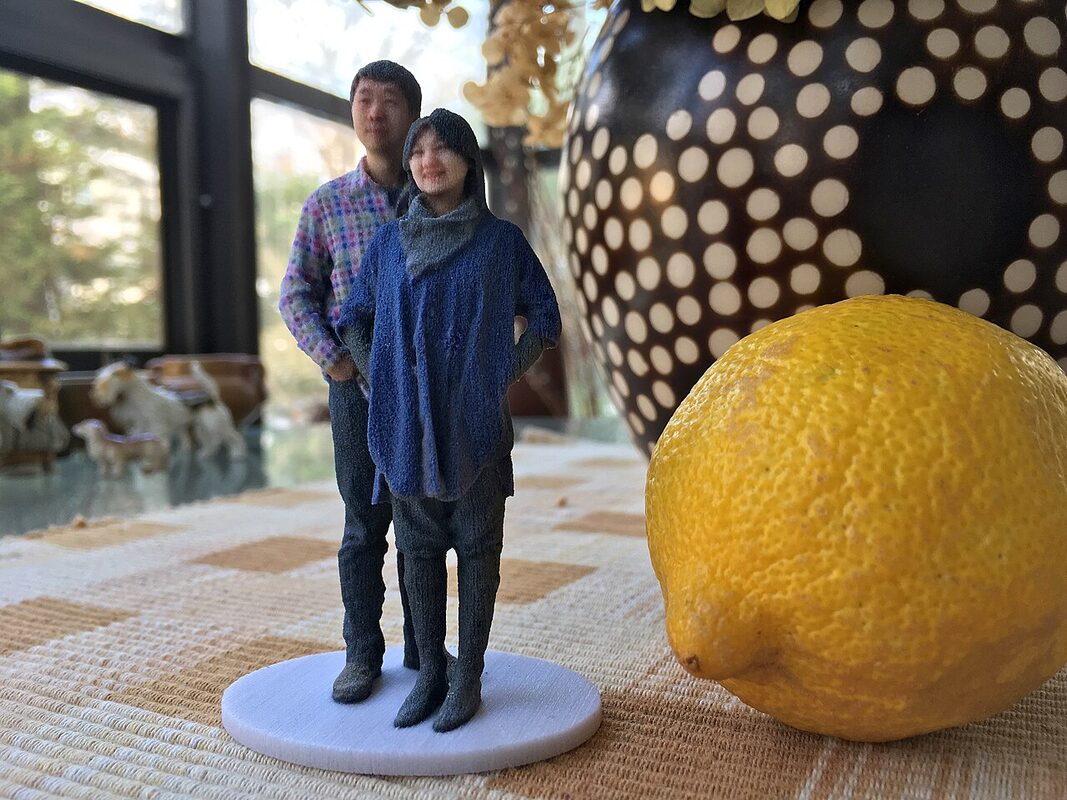
Text-to-3D generators have become good at producing models that look finished on screen. The color is real, but it lives in a texture map. Once the model goes out as an STL, that texture is gone and you're left with gray geometry. Neural4D's answer is a new feature in Neural4D Studio called Multicolor. It reads a model's PBR texture, uses AI to find distinct color regions, proposes a filament color scheme and exports a file a slicer can use for a multicolor print. The default output is 3MF, with GLB as an alternative. There's one big limit in this first release: it only works on models generated inside Neural4D. You can't upload your own files yet.
VoxelMatters reported the launch on October 10, 2026. The feature is aimed at a specific, tedious job: turning a painted-looking digital object into something a multi-material printer can make.
The Problem It Targets
Most makers who have tried to print a textured model in more than one color know how it goes. The texture is a continuous image wrapped over the mesh. A multi-material printer can't print a gradient across thousands of pixels. It needs a small, fixed set of filaments and a clear answer for which faces get which one. Getting from the first to the second usually means painting by hand in the slicer or splitting the model up in a separate tool. Both take a lot of time.
The file format matters too. Neural4D's user guide says plainly that STL carries no color information. That's why Multicolor exports 3MF or GLB, which can carry color assignments along with the geometry. Neither the guide nor the coverage presents this as a general solution to texture-to-filament conversion. The pitch is narrower: if the model came out of Neural4D's generator, Neural4D will do the color mapping for you.
How the Workflow Is Built
Based on the vendor's product page, guide and VoxelMatters' coverage, the process runs in a few stages.
Region detection. Multicolor starts from a model that has PBR textures. AI looks at the texture and picks out color regions, meaning the areas that should end up as one filament. This is the step that replaces hand-painting faces.
A starting scheme. A mode called Smart Color proposes a four-color scheme by default. The blog guide calls this Smart Coloring and says it also returns four colors. Treat four as a starting point, not an answer.
Manual adjustment. You can change the color count anywhere from one to eight. You can swap filament materials from a built-in library or enter a custom six-digit hex value. According to VoxelMatters, the library's material presets are PLA Basic, PLA Matte, PETG, ABS and TPU. A feature called My Colors lets you save palettes of one to eight colors and reuse them across models and sessions. That should help anyone who keeps the same spools loaded and wants every model mapped to them.
Coverage readout. The editor lists each color with its share of the model's surface. That's more useful than it sounds. If a color covers only a sliver of the model, it may not be worth a filament slot or the purge waste of swapping to it. The number lets you decide to merge that region into a neighbor before you ever reach the slicer.
Export. The file comes out as 3MF by default, or GLB if you prefer. The guide says Multicolor returns the color-ready file in one generation and doesn't require any extra printer hardware.
Where the Slicer Still Matters
Multicolor doesn't replace your slicer, and VoxelMatters is clear about the handoff. You still map the exported colors to your printer's supported filament configuration in the slicer, and all final slicing and print settings stay there. Neural4D decides which surfaces belong to which color group. Your slicer still decides how the print happens: layer heights, purge strategy, supports, temperatures and the rest.
That split is reasonable. A cloud model generator has no idea which spools are in your multi-material unit, how your printer handles tool changes or what you've tuned for a given material. Keeping those decisions local means the tool is mostly doing segmentation and palette work, which is where AI can actually save time.
The "no extra hardware" claim is worth reading carefully. The guide is saying that Multicolor needs nothing beyond what you already have. It isn't saying a single-extruder printer will suddenly print in color. A multicolor print still needs a printer and slicer that can handle multiple filaments, or manual filament swaps along whole layers, which the guide covers as a separate method. Multicolor's job is preparing the file.
The Walled-Garden Caveat
The biggest limitation is in the blog guide. Multicolor accepts textured models generated on Neural4D's platform, and local uploads aren't supported in this first release. If you have a textured model from a scan, another generator or your own texturing work, this tool can't help you yet.
The "first release" wording suggests local uploads could come later, but Neural4D hasn't given a timeline in these materials and FilamentFeed won't guess at one. For now, Multicolor is a feature of the Neural4D pipeline, not a general-purpose converter. How useful it is depends on whether you already generate models with Neural4D or are willing to start. The guide also lists a cost: 30 credits per generation, refunded if a job fails or times out.
What It Means for Makers
If you already use AI generation for figurines, tabletop pieces or decorative prints, Multicolor removes one of the most tedious parts of the job. Going straight from a textured model to a 3MF with a filament-ready palette gets rid of a lot of manual painting. The controls look like they were designed by people who know how multi-material printing works: a count limit, saved palettes that match your loaded spools, material presets and a per-color coverage share.
The usual caution with automated segmentation applies. The AI picks the regions, and you'll want to check them before committing hours of print time and a pile of purge waste. The coverage figures help with that. The default four-color scheme should be treated as a draft. And since the slicer still controls the actual print, the result still depends on how well your multi-material setup is tuned.
Bottom line: Multicolor is a focused fix for a real gap between AI-generated models and multicolor printing. It's held back mainly by the restriction to Neural4D-generated models. If Neural4D opens it to uploaded files, it gets much more interesting for the wider maker community. Until then, it's a convenience for people already working inside Neural4D Studio.
