
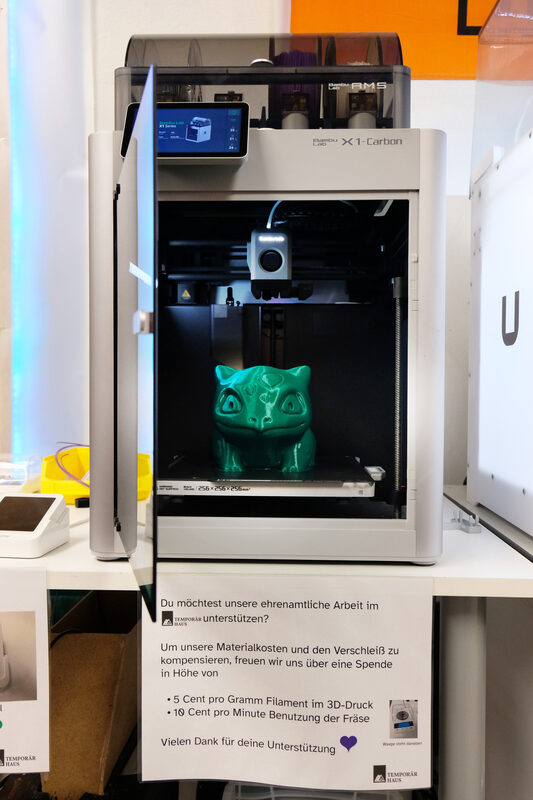
The Bambu Lab P1S combined with the Automatic Material System (AMS) is the most capable multi-color FDM printing platform available under $1,200 in 2026. According to Bambu Lab's P1S setup documentation, the combination supports up to four materials in a single print job — enabling color-gradient models, multi-material functional parts, and purge-free color changes when paired with the correct print profiles. However, the out-of-box experience involves specific calibration steps that first-time users frequently skip, leading to avoidable problems with multi-material print quality and AMS feeding reliability. This guide covers the full setup sequence from unboxing through your first successful multi-color print, including the calibration steps that make the difference between frustrating and seamless results.
Unboxing and Hardware Setup
The P1S ships fully assembled and pre-calibrated at the factory, but the shipping configuration includes several protective foam pieces and cable restraints that must be removed before powering on. Work methodically through the unboxing checklist in the included quick-start guide: remove the foam blocks from the toolhead area, the foam padding from around the build plate, and the cable ties securing the extruder cable bundle to the frame. Missing any of these shipping restraints causes immediate hardware damage on the first calibration run. Place the printer on a stable, level surface with adequate ventilation around all four sides — the P1S requires airflow clearance at the rear exhaust for its enclosure filtration system. If using the AMS, position it to the left or rear of the printer (the cable is on the left side of the P1S), and route the AMS cable into the printer's left-side cable port.
Initial Calibration Sequence
After powering on and completing Wi-Fi setup, the P1S prompts a mandatory first-run calibration that includes vibration compensation (resonance calibration), flow rate calibration, and first-layer Z-offset determination. Do not skip or interrupt this sequence — it takes approximately 15 to 20 minutes and must complete fully for the printer's default profiles to produce accurate results. The vibration compensation routine moves the toolhead through a specific pattern to measure the frame's resonant frequencies and configure input shaping parameters; interrupting it leaves the printer with generic values that may produce ringing artifacts at higher speeds. After the factory calibration completes, run a manual first-layer test by selecting Calibration from the printer's main menu and choosing First Layer Calibration. Watch the first layer printing carefully: the nozzle should compress plastic into the PEI sheet with a slight spread visible, producing a smooth connected layer with no gaps between lines. If the layer looks rounded or gaps appear between lines, lower the Z-offset by 0.02mm increments and rerun until the layer looks correct.
Loading Multiple Filaments into the AMS
The AMS holds four spools simultaneously and feeds them through PTFE tubes to the P1S extruder. Load spools into slots 1 through 4 with the filament end feeding from the bottom of the spool and through the AMS's built-in filament sensor at the front of each slot. Thread each filament end into the corresponding AMS inlet until the motor engages and automatically draws the filament forward — a brief mechanical sound and a filament sensor confirmation on the printer display indicate successful loading. Configure the filament type and color for each slot in Bambu Studio (or on the printer touchscreen) so the slicer correctly matches slot assignments to the colors used in your model. Using filaments of significantly different temperature requirements in the same print — for example, PLA in slots 1 and 2 with PETG in slots 3 and 4 — is not recommended in a single job.
Multi-Color Print Workflow in Bambu Studio
Import your multi-color model into Bambu Studio. Models with pre-assigned material regions (MMF multi-color files, 3MF files with embedded color data) automatically assign colors to AMS slots on import. For models without pre-assigned colors, use Bambu Studio's paint tool to assign regions of the model to specific AMS slots — the painting interface lets you assign by face, by layer height range, or via the smart fill tool that attempts to identify logical color boundaries. After assigning colors, configure the purge volume in the Flush settings panel. Purge volume controls how much filament is extruded into the waste purge bucket during color transitions to prevent color contamination between AMS slots. Default values are conservative; you can reduce purge volume after successful test prints confirm clean color transitions with less material. Enable the wipe tower (also called the purge tower) for most multi-color prints — this structure appears at the side of the build plate and receives purged transition material, keeping contamination out of the model.
Common Issues and How to Fix Them
AMS feeding failures — where a filament slot fails to feed or tangles mid-print — are the most common issue with the P1S/AMS combination. The most frequent cause is kinked or tangled filament on the spool: reload the affected slot and manually advance the filament to confirm smooth feeding before restarting the job. Spool diameter mismatches (spools too wide or narrow for the AMS slot width) cause lateral filament binding; check that spools fit the AMS dimensions before starting long jobs. Humidity-swollen filament (particularly common with hygroscopic materials like nylon or TPU) causes extruder jams during AMS transitions; dry affected filament for four hours at the material's recommended drying temperature. Color contamination between AMS slots — visible as a slight tint from the previous color appearing in the new color region — indicates insufficient purge volume. Increase the flush volume setting by 20 percent increments until transitions are clean.
What It Means for Makers
The P1S with AMS represents the most accessible multi-color FDM setup available in 2026 — the automated calibration, filament detection, and purge management make what was once a finicky expert workflow routine. The investment in a careful first-run calibration sequence and a well-tuned first layer pays for itself immediately in reliable print results. Once you have a successful multi-color print under your belt, the creative possibilities expand substantially: logos, multi-color miniatures, labeled functional parts, and color-gradient decorative objects all print without post-assembly or painting. The AMS workflow becomes second nature quickly, and the purge material waste — the main operational cost — decreases as you tune flush volumes to the minimum needed for clean transitions.
Sources
- Bambu Lab Wiki — P1S User Manual — official setup, calibration, and operation documentation for the P1S printer including AMS integration.
- Bambu Lab Wiki — AMS Manual — official AMS hardware setup, filament loading, and multi-material print configuration guide.
